One small app instead of the maker's lighting software. Pick an effect, make the lights follow your music, or let them tell you when something happens. No account, no extra services to install, nothing sent anywhere.
Free and open source. Windows today, Linux on its way.
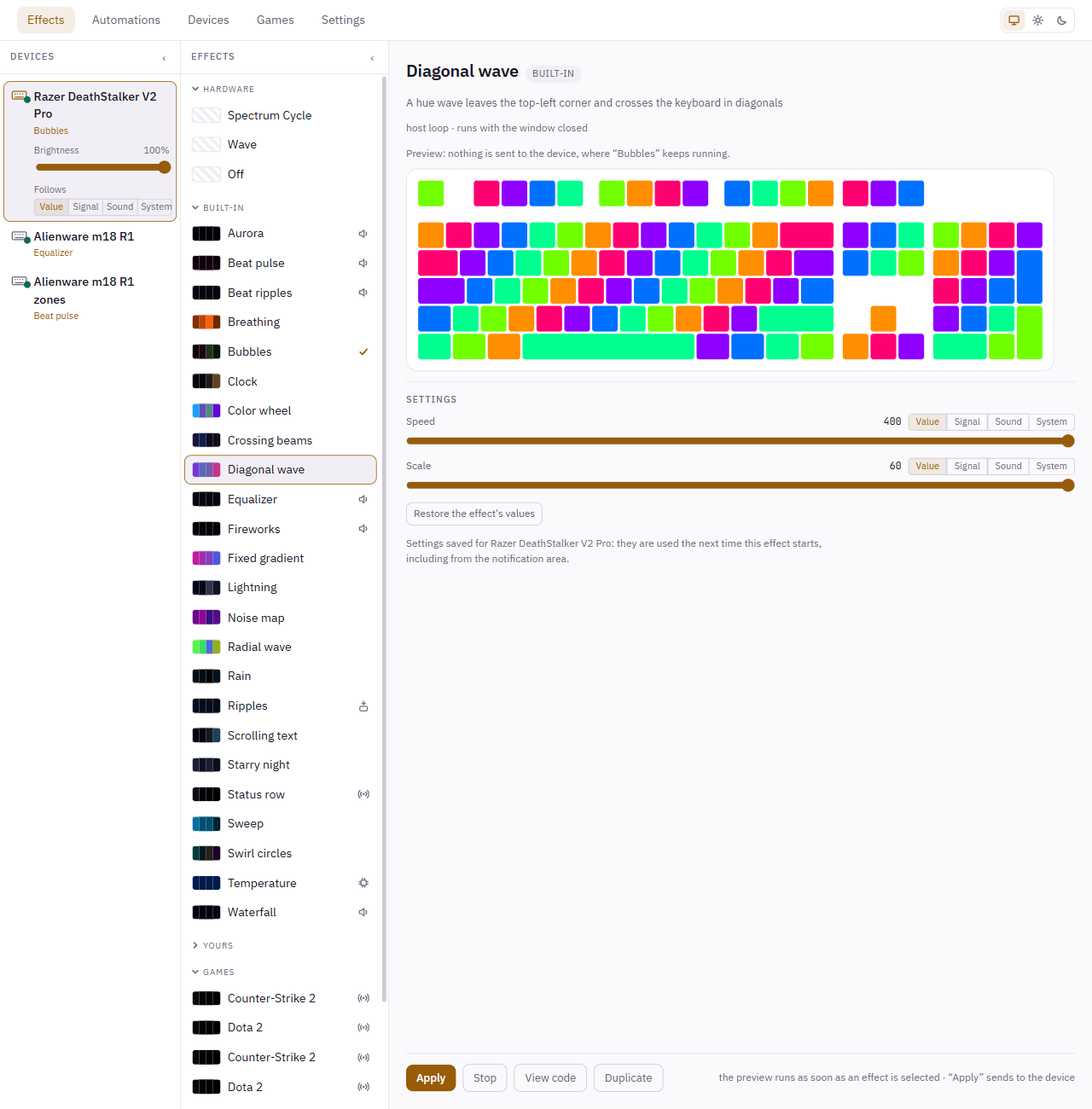
Up and running in a minute
- Install Candeo from the Microsoft Store.
- Open Devices and click Control next to your keyboard.
- Pick an effect and Apply it. It keeps running when you close the window.
Twenty-six effects, ready to go
Colour and motion
Radial wave, Diagonal wave, Sweep, Color wheel, Swirl circles, Crossing beams, Breathing, Noise map, Fixed gradient
Weather and night
Rain, Starry night, Lightning, Bubbles
Your typing
Ripples: a ring from every key you press
Time and words
Clock, and Scrolling text for any words you like
Your other tools
Status row: a key per thing you watch, green, amber or red
Your music
Equalizer, Waterfall, Beat pulse, Beat ripples, Fireworks, Aurora
Your games
Counter-Strike 2 and Dota 2: your health, your ammo or your mana, and what hits you
Tune each one while you watch it, and keep the settings you like as presets: one click brings them back, on any device or region. Your keyboard's own built-in effects are there too, under their usual names.
Lights that dance to your music
An equalizer, fireworks on the beat, an aurora swaying at the song's tempo — and any effect can follow the sound: faster when it gets loud, redder with the bass. Candeo listens to what your speakers play, never your microphone, and records nothing. How sound works →
Lights that tell you things
Rules
The time on the hour, the keyboard dark at night: a rule takes over for a while, then gives your effect back.
How rules work →Signals
A build that failed, the doorbell, a call starting: a script or Home Assistant tells Candeo, and your keyboard shows it.
How signals work →Games
Your health, your ammo, your mana: Counter-Strike 2 and Dota 2 tell Candeo what happens in your game.
Connect a game →Your devices
Candeo lights the Razer DeathStalker V2 Pro, the Alienware m18 R1 — its keyboard, key by key, and the lights around it — with their brightness and their own built-in effects, and the Alienware 17 R5, its keyboard zones and every light around them. See the devices →
A laptop's lights split into regions, each with its own effect: the keyboard to the music, the lid to how hot the computer runs.
More keyboards and laptops — Razer, ASUS, SteelSeries, Logitech, HyperX, and seventeen Alienware and Dell machines — have a definition waiting for someone to try it. Try yours →
Yours is not there yet? Candeo shows it as detected, with a report filled in for you; and a device is a file you can write, and try at once. Describe your device →
Make it yours
An effect is a short file you can read. This one is the keyboard at the top of the page:
import { bounds, center, defineEffect, hsv } from '@candeo/effects-api'

export default defineEffect({
  description: 'A rainbow sweeping across the keyboard',
  render({ layout, time, frame }) {
    const area = bounds(layout)
    for (const key of layout.keys) {
      const across = (center(key).x - area.x) / area.w
      frame.set(key, hsv(across * 360 - time * 60, 1, 1))
    }
  },
})
Write yours in Candeo, next to a preview of your keyboard, and apply it when it looks right. Devices, signals and settings are just as open. Build on Candeo →
Or ask your AI assistant: Claude, Codex, GitHub Copilot, Cursor or VS Code can read your devices and effects through MCP, and write one for your keyboard. Off until you turn it on. Connect an assistant →
What it sends
Nothing. No account, no telemetry, no identifier — read the privacy policy.